Wi-Fi / Smart Thermostats in Bellingham, WA
Today’s homeowners want more than just comfort. They want control. That’s exactly what Wi-Fi and smart thermostats offer. At Barron Heating AC Electrical & Plumbing, we help homeowners in Bellingham and throughout Northwestern Washington bring convenience, energy savings, and precision into their heating and cooling routines with modern thermostat technology. Whether you're upgrading an old manual model or looking to integrate a smart system into your home, our team is here to guide you.
- We provide consistent, reliable heating and cooling for year-round comfort
- We improve indoor air quality to support healthier homes
- We recommend efficient systems that are sized right to improve performance and lower energy costs
Let us show you how a Wi-Fi or smart thermostat can simplify your life and optimize your heating and cooling system’s performance. As the only HVAC provider in the region with our own line of heat pump equipment, our Barron Private Label systems feature cutting-edge technology, exceptional warranties, and unbeatable prices.
Contact our Bellingham Home Performance Experts for Wi-Fi and smart thermostat services today! We’ve proudly served the I-5 corridor from Blaine to Marysville, Oak Harbor to Concrete, and the San Juan Islands since 1972. Our Mission: Improving Lives™.
What Are Wi-Fi and Smart Thermostats?
Wi-Fi thermostats are connected to your home’s wireless internet network, allowing you to control your indoor temperature remotely using a smartphone, tablet, or voice assistant. A smart thermostat takes this functionality a step further by learning your preferences and daily routines. Over time, it can automatically adjust settings for maximum comfort and efficiency without you lifting a finger.
Many smart thermostats offer geofencing features that track your phone’s location to determine whether you’re home or away, helping reduce unnecessary heating and cooling. They also provide detailed energy usage reports, so you can track performance and identify opportunities to save. With compatibility across a wide range of HVAC systems, these thermostats offer both convenience and insight, all while improving your home’s energy efficiency.
DaikinOne Touch Thermostat Quick Start Guide
The Daikin One Touch thermostat is a smart solution for ultimate home comfort and energy savings. In this quick start guide, we'll walk you through basic setup so you can start controlling your home's climate in just a few minutes. The home screen displays the current temperature, system mode, and adjustment slider, as well as icons leading to the top level screens. The schedule screen displays upcoming set point changes and scheduled times. It also offers access to Edit Mode where you can adjust the schedule. The Away screen displays energy saving set points. Energy saving can be invoked manually or automatically when the mobile app recognizes everyone is away. With optional indoor and outdoor sensors connected, the Air Quality screen will display indoor and outdoor air quality levels and the weather. To get the most out of your new thermostat, let's connect your Daikin One Touch thermostat to Wi Fi. On the home screen, tap the settings icon, then Wi Fi. Select your network, enter the password, and you're connected. Let's set your temperature. Tap the System Mode icon to set your desired mode. Auto selects heating or cooling depending on the indoor temperature. Cool controls only the cooling system. Heat controls only the heating system. And Off turns off both the heating and cooling systems. Emergency heat applies to heat pumps with auxiliary emergency heat when the compressor is locked out. Tapping the arrow will adjust set points that are displayed. You can also tap, hold, and slide the set point icons to your desired temperature. The schedule is presented as seven days displaying one day at a time with twenty four hours on the screen. Tap the schedule icon to bring up the schedule menu. Tap the menu icon then tap the edit schedule option. Select the day you wish to edit by tapping the header in the left hand corner. From the edit screen, tap the add new event or edit event option located at the bottom of the screen. Start time. Tap and drag the hour and minute intervals to update. Event label. Edit the name of the event. To make scheduling seamless, your smart thermostat offers a copy and paste feature. Once you've finished making your changes, be sure to tap Save, which is in the lower right hand corner. Manage your Daikin One Touch thermostat with the easy to use Daikin One Home app, making it simple to control home comfort remotely, monitor usage, and more from anywhere. Enjoy your new Daikin One Touch Smart Thermostat. If you need more information or have any questions, visit daikinone dot com or contact our support team.
Why Upgrade to a Wi-Fi or Smart Thermostat?
Upgrading to a Wi-Fi or smart thermostat offers a wide range of benefits. First and foremost, it allows you to manage your heating and cooling system from anywhere—whether you’re on vacation, at work, or just relaxing on the couch. With intuitive scheduling and adaptive features, smart thermostats help reduce energy waste and lower your utility bills.
These systems are particularly helpful for busy households, vacation properties, or anyone trying to balance comfort with conservation. Over time, a smart thermostat pays for itself by optimizing your system’s performance. Some models can also monitor humidity, send maintenance reminders, and integrate with broader smart home platforms. At Barron Heating AC Electrical & Plumbing, we’ll help you choose the model that best fits your home and lifestyle.
Honeywell T-10 Thermostat Quick Start Guide
The Honeywell T10 Smart Thermostat features effortless programming on an easy to use touchscreen. In this quick start guide, we'll walk you through basic setup of your T10 Smart Thermostat so you can start controlling your home's climate in just a few minutes. Let's start with Wi Fi. Select the main menu icon, then select Wi Fi. There is a slider labeled Enable Wi Fi. Make sure this is set to the right. Select Choose Network. After a brief delay, the thermostat should show available networks. Choose your home network from the list. If it's a secure network, it should prompt you to enter Wi Fi password. After a brief delay, the display should show Success. Your thermostat is now successfully connected to the network. Press Okay. To set your temperature, first touch Menu, then System Mode. From there, set your desired mode. Heat controls only the heating system. Cool controls only the cooling system. Off turns off both the heating and cooling systems. And Auto selects heating or cooling depending on the indoor temperature. Touch Done to save and exit. Select the menu icon at the bottom of the home screen, then select Schedule. The thermostat will then walk you through your setup. Manage your Honeywell Home devices in the easy to use app, making it simple to control home comfort remotely, monitor usage, and more from anywhere. Enjoy your new Honeywell T10 Smart Thermostat. If you need more information or have any questions, visit HoneywellHome dot com or contact our support team.
Trust the Professionals for Installation and Support
While today’s thermostats are user-friendly, professional installation ensures they are set up correctly and integrated with your existing HVAC system. Our experienced technicians will not only install your Wi-Fi or smart thermostat, but they’ll also walk you through its features and settings to make sure you’re comfortable using it.
Incorrect installation can cause miscommunication between your thermostat and HVAC system, potentially affecting comfort and efficiency. We make sure everything works as it should, and we’re always available for follow-up support if you have questions down the line. As part of our commitment to top-tier service, we offer expert guidance and ensure your smart thermostat performs exactly as promised.
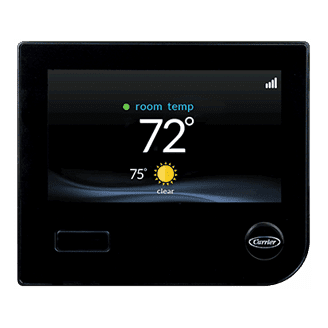
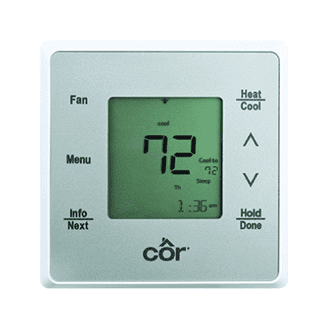
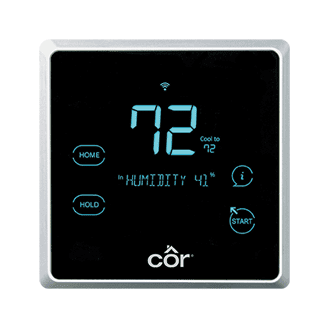
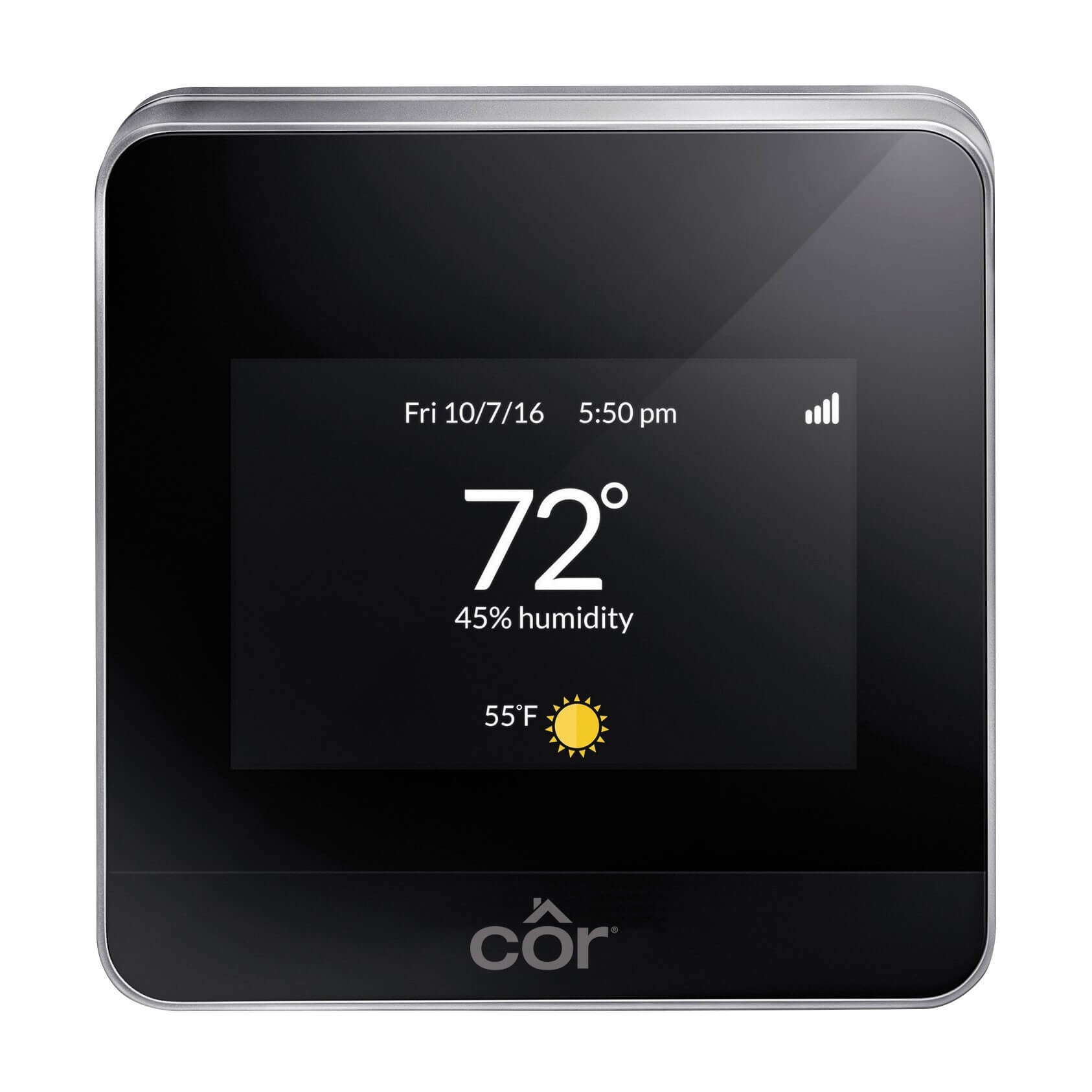
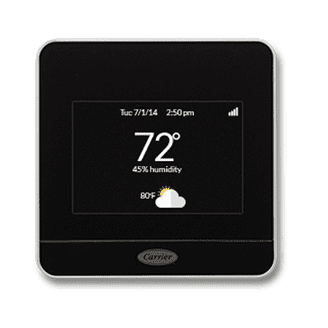
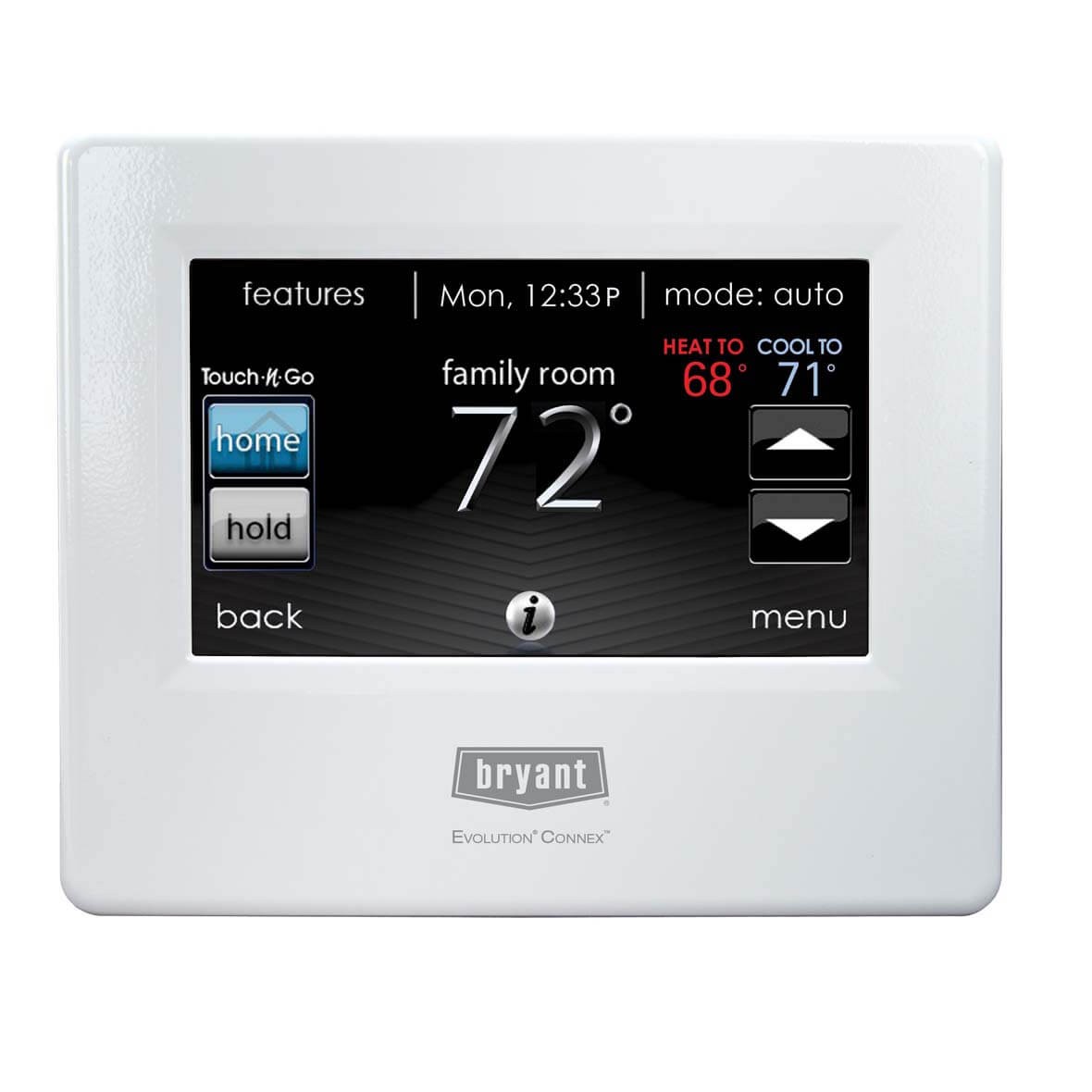
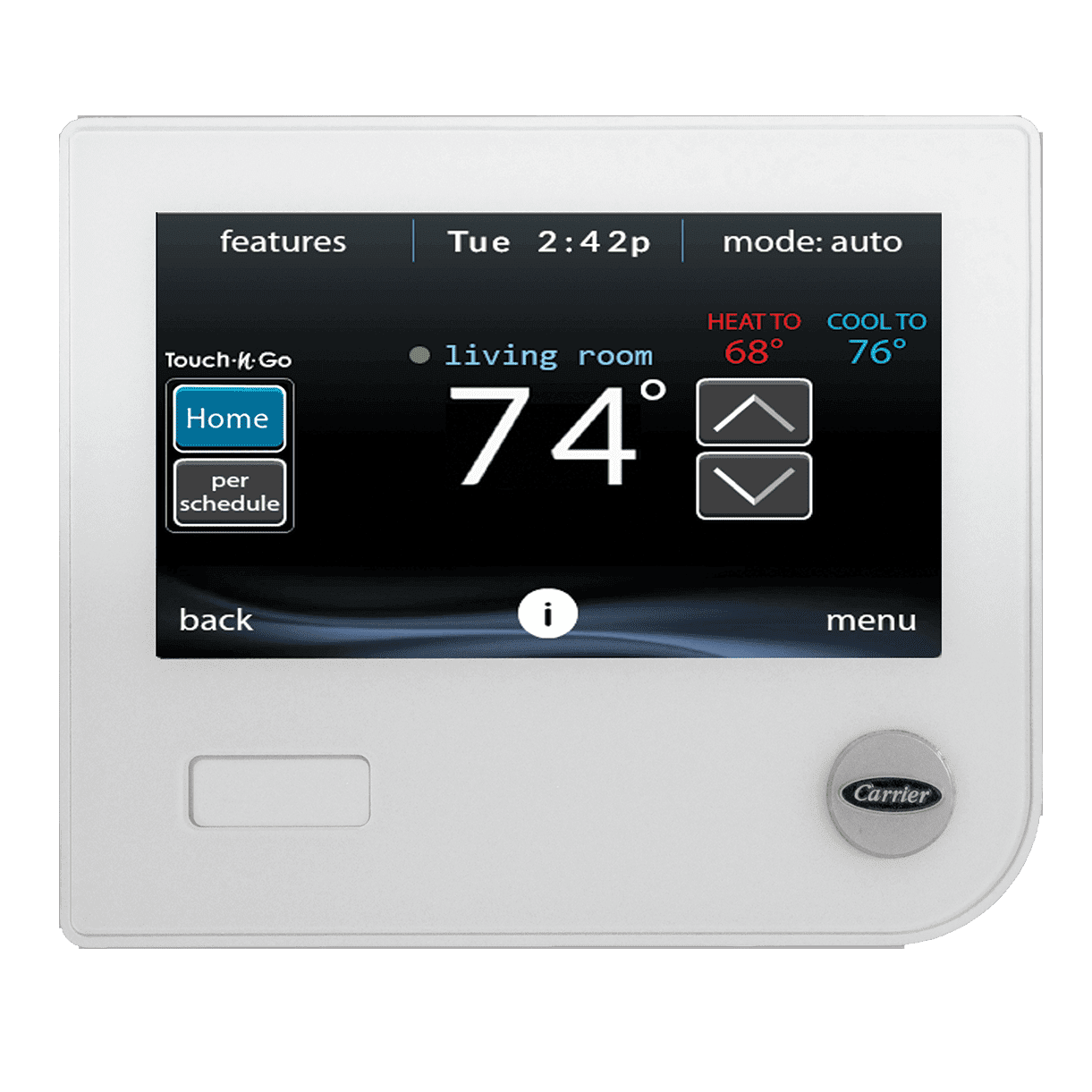
View photos of our wi-fi thermostats here:
Click on one of the images to see the model name.